Vim Sample Showcase
Wed 30 May 2012Vim အကြောင်းရေးလက်စနဲ့ ဖြစ်နေတော့ သုံးလို့ရတာကို နမူနာပြထားတယ် Code Auto Complete အတွက်နဲ့ Tab Key အစားထိုးဖို့အတွက် xptemplate နဲ့ Supertab ကိုသုံးထားတယ် စမ်းကြည့်ဖို့အတွက် Vim တော့ရှိဖို့လိုပါတယ် Gvim, MacVim, Vim, Gnome Vim စသည်ဖြင့် တစ်ခုခုတော့ရှိဖို့လိုလိမ့်မယ်။ Vim ဟာ Unix Environment ကလာတာဖြစ်လို့ User Environment မှာအားလုံး Customize လုပ်လို့ရပါတယ်။ xptemplate နဲ့ Supertab ကို အောက်မှာ ပြထားတဲ့ URL တွေကနေ Download လုပ်ပြီးတော့ Install လုပ်ရမယ်။ Windows မှာဆိုရင် ကိုယ့်ရဲ့ User Directory အောက်မှာ _vimfile ဆိုပြီး Folder တစ်ခု Create လုပ်ပြီး Unix, Linux, Mac ဆိုရင်တော့ User Directory အောက်မှာ .vim ဆိုပြီး Directory တစ်ခု Create လုပ်ပြီး ကူးထည့်ရမယ်။
https://github.com/drmingdrmer/xptemplate https://github.com/ervandew/supertab
ပြီးရင်တော့ အဆင်ပြေပြေသုံးလို့ရဖို့ Configure နည်းနည်းလုပ်ရမယ် Windows ဆိုရင် User Directory အောက်မှာ _vimrc ဒါမှမဟုတ် Unix, Linux, Mac ဆိုရင် vimrc ဆိုပြီးနည်းနည်း ပြင်ဖို့လိုမယ် ရှိပြီးသားဆိုရင် အဲဒီ့ထဲကိုထပ်ထည့် မရှိရင်တော့ Create လုပ်ပြီး အောက်မှာပြထားတဲ့ ကုဒ်တွေကိုထည့်ရမယ်။ ဘာရယ်တော့ ထူးထူးဆန်းဆန်း မဟုတ်ပါဘူး Tab ကိုနှိပ်ရင် xptemplate ရဲ့ Shortcut ကိုအလုပ်ဖို့နဲ့ Filetype တွေအလိုက် Auto Complete လုပ်ဖို့အတွက် filetype plugin ကို On ထားတာတစ်ခုပါပဲ။
"" No Compatible Mode set nocompatible "" Filetype Plugin filetype plugin on "" xptemplate let g:SuperTabMappingForward = 'supertabKey' let g:xptemplate_fallback = ' supertabKey' let g:xptemplate_key = ' ' let g:xptemplate_vars = "BRloop=\n&BRif=\n&BRstc=\n&BRfun=&SPcmd="
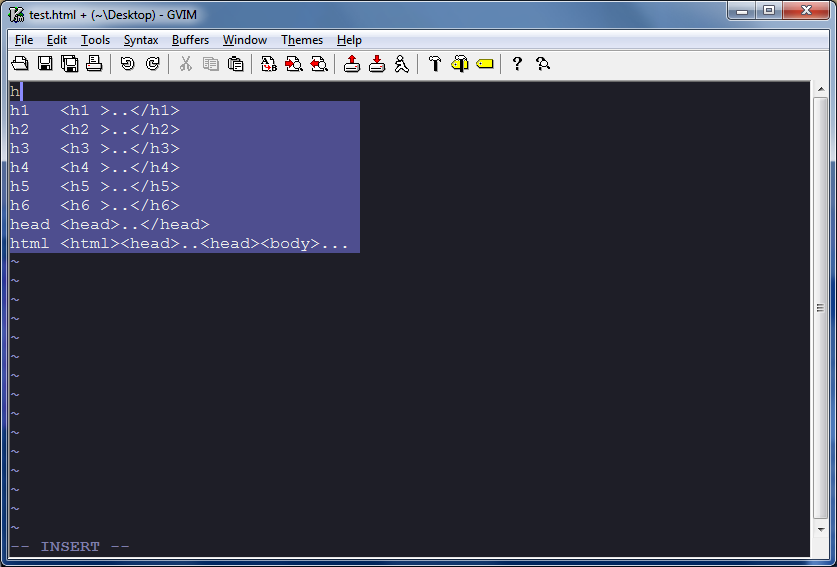
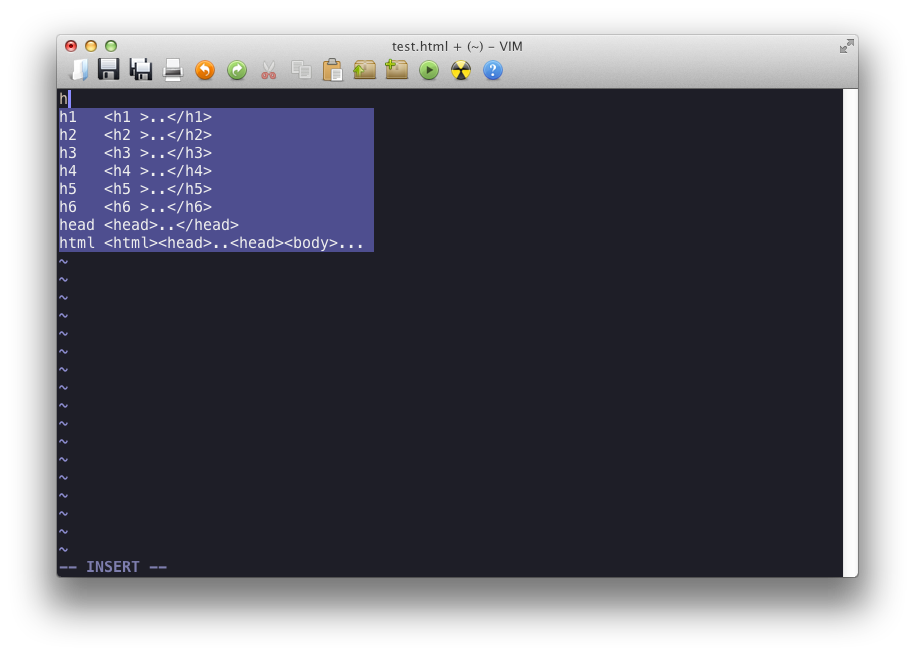
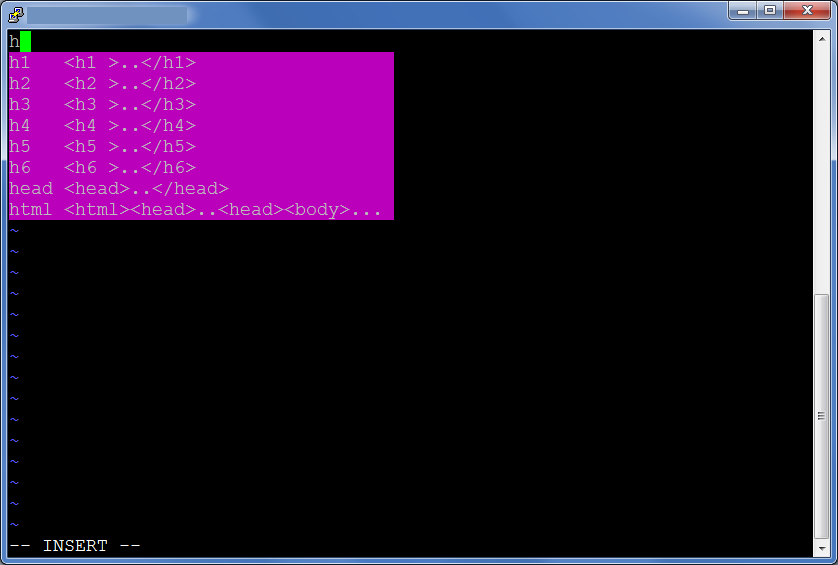
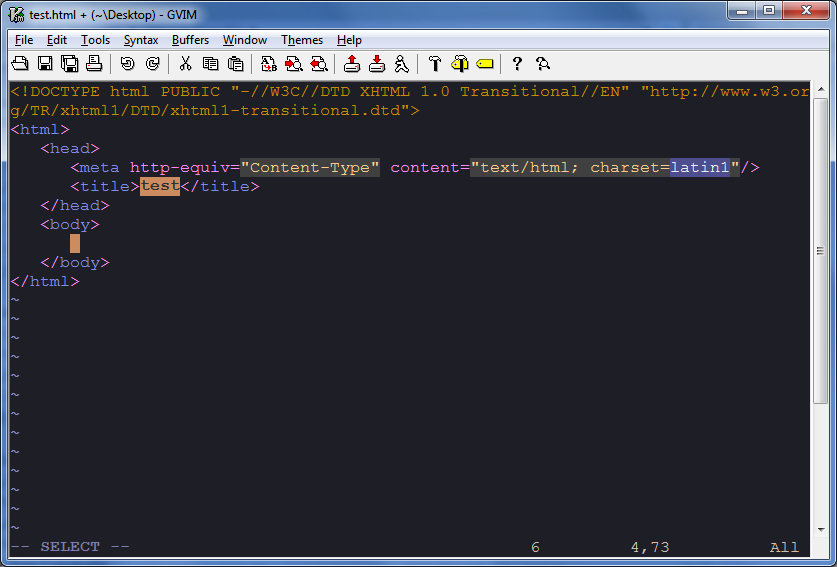
အဲဒါတွေပြီးရင်တော့ သုံးလို့ရပါပြီ Vim နဲ့နမူနာစမ်းရအောင် HTML file တစ်ခု Create လုပ်လိုက်တယ် ပြီးတော့ Insert Mode ကိုပြောင်း h လို့တစ်လုံးပဲရိုက် Tab တစ်ချက်နှိပ်လို်က်ရင် သူကစာရင်းပြတယ် h1 to h6, head, html ဆိုပြီး Hints ပေးသေးတယ် အဲဒါကို ht လို့ဆက်ရိုက် Tab ထပ်နှိပ်လိုက် တစ်ခါတည်း HTML Page တစ်ခု Skelaton ထွက်လာရော အဲဒါကိုပဲ ပြင်လေ့ရှိတဲ့နေရာတွေကို ခုံလို့ရတယ် ပထမဆုံး charset မှာ Cursor ချထားပေးတယ် ပြင်ချင်ရင်ပြင် ထပ်ပြီး Tab နှိပ်လိုက်ရင် title ထဲကို ကျော်သွားပေးတယ် ပြင်ပြီးလို့ Tab ထပ်နှိပ်ရင် body ထဲကိုကျော်ချပေးတယ်။
စိတ်ဝင်စားရင်တော့ သုံးကြည့်လို့ရပါတယ် အသုံးတည့်နိုင်တဲ့ Vim Script တွေဆိုရင် TagList, NERD tree လိုဟာတွေလည်း အသုံးတည့်တယ်။ အရောင် လှလှပပသုံးချင်ရင် Color Sampler Pack မှာ Scheme အများကြီးရှိပါတယ်။ စိတ်ဝင်စားရင်တော့ စမ်းကြည့်လို့ရတယ် စသုံးကာစလူအတွက် လွယ်တယ်လို့တော့ မပြောပါဘူး Key တွေအများကြီး မှတ်မိဖို့လိုတယ် အလွတ်မရခင်တော့ ကွန်ပျူတာကို ဆောင့်ကန်ချင်စိတ် ပေါက်လာတတ်တာပေါ့ နမူနာစမ်းပြထားတဲ့ ပုံတွေကို အောက်မှာပြထားပေးပါတယ်။